Server Backups
Back up messages, channels, roles and more of your server completely automatically and restore it in case anything goes wrong.
Because backups may contain sensitive user information and sensitive message content, they will be encrypted at rest and are only decrypted at runtime (e.g. when you restore a backup). Still, please do not post messages containing sensitive information (like Credit-Card-Details or Social-Security-Numbers) in channels that get backed up.
To use this feature, invite the SCNX-Bot to your server. Some feature require a separate Backups+ subscription.
What is included in Backups?
| Feature | Description |
|---|---|
| Channels | Backups will include every channel on your Discord. Channel data includes: Channel name, Channel topic, Channel cooldown, Channel permissions and more |
| Roles | Backups will include every role on your Discord. Saved Role data includes: Permissions, name, color and more |
| Emojis | Backups will include every Emoji on your Discord. This includes the actual emoji-image and emoji-name. Stickers might also be included. |
| Bans | Backups will include every Ban on your Discord. Every ban includes a reason and the banned user. |
| Members | Backups will include which user had which role when the backup was created. THIS FEATURE MIGHT NOT BE AVAILABLE TO EVERYONE |
| Guild-Settings | Backups will include Server name, icon, settings (like the AFK channel), Auto-Moderation rules and more |
Manual backups
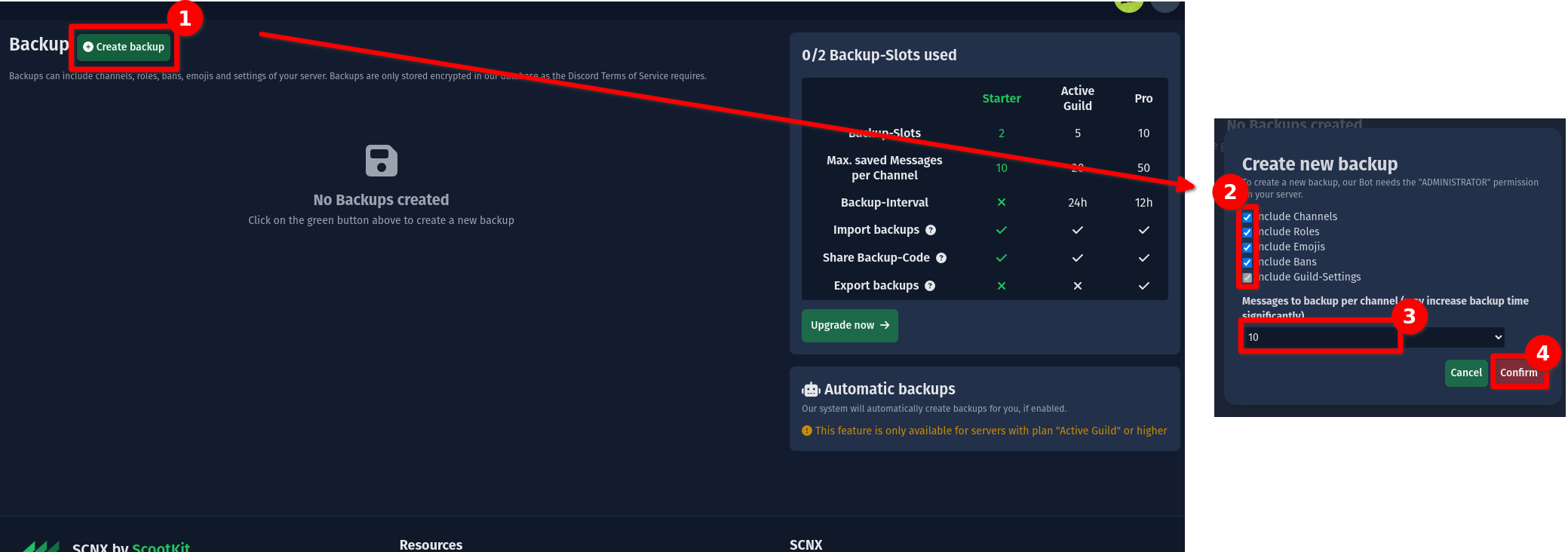
To create a manual backup, please visit your backup dashboard in your SCNX Dashboard. Next, click on "Create backup" and select what parts the backup should include. Then, confirm your backup. Creating a backup might take up to 15 minutes, depending on the number of messages that need to get stored.
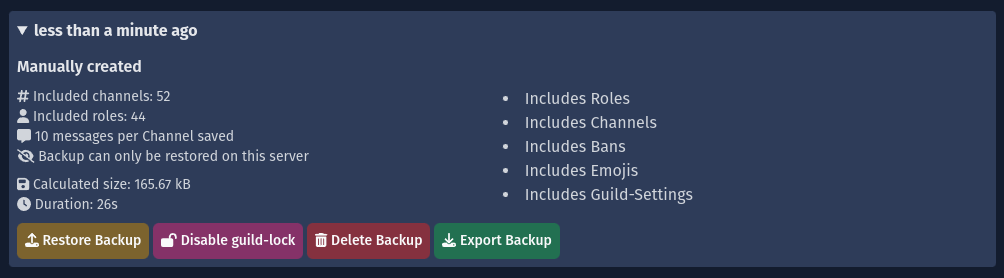
After the backup has been created (this can take a while), you'll be able to view the backup in your backup-list and manage it. These options are available:
- Restore backup: Allows you to restore the backup on this or another server. Please read more in the restore backups section.
- Disable / enable Guild-Lock: Allows / Disallows your Backup to be restored on other servers. Please read more in the restore backups on other servers section.
- Delete backup: Permanently deletes the backup from our servers. This can not be reversed.
- Export backup: Exports the backup as a JSON-File. Please read more in the export backups section.
Automatic backups
To enable automatic backups, visit the backup dashboard and select the number of backups you want to be created below "Automatic backups" and save the change.
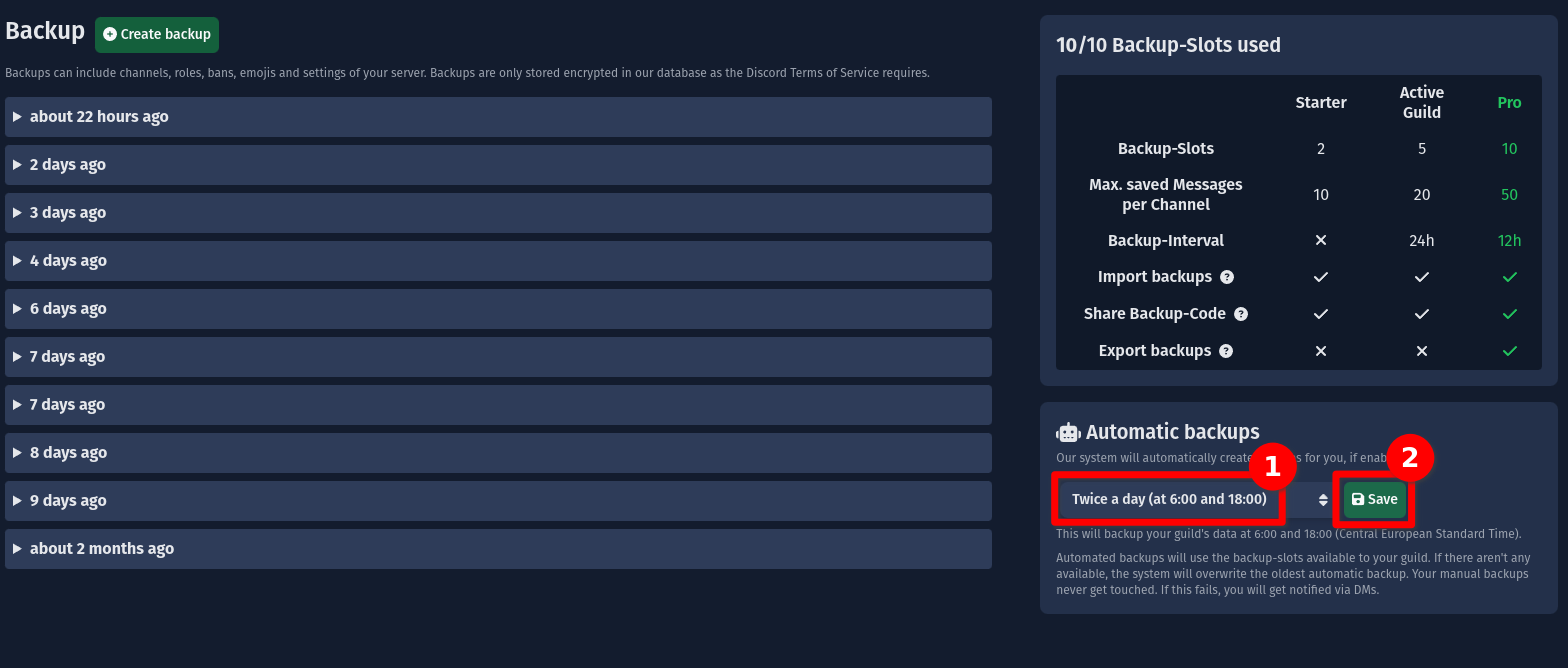
Based on your setting, SCNX will create a backup up to two times a day. This always happens at the same time of day, based on your server's timeslot. You can find the timeslot of your server in your dashboard. Please note that summer might affect the display time of creation on your backup.
Automated backups will use the backup-slots available to your guild. If there aren't any available, the system will overwrite the oldest automatic backup. Your manual backups never get touched. If manual backups occupy all backup-slots, no automatic backups will be created.
Restore backups
Restore on original server
Before restoring a backup, please adjust the following settings on your Discord:
- Move the (verified) SCNX Bot's role above all other roles and give it Administrator permissions
- Disable the community feature of your server in the Server Settings (you can re-enable it later)
- Understand that continuing will delete all messages, channels and roles from your server
To restore a backup on your server, visit the backup dashboard of your server and click on the backup you want to restore. Next, click on "Restore backup". You'll be shown a command. Use the "Copy command" button to copy the command and paste it into Discord on your server. Make sure that you are executing this command with the (verified) SCNX-Bot.
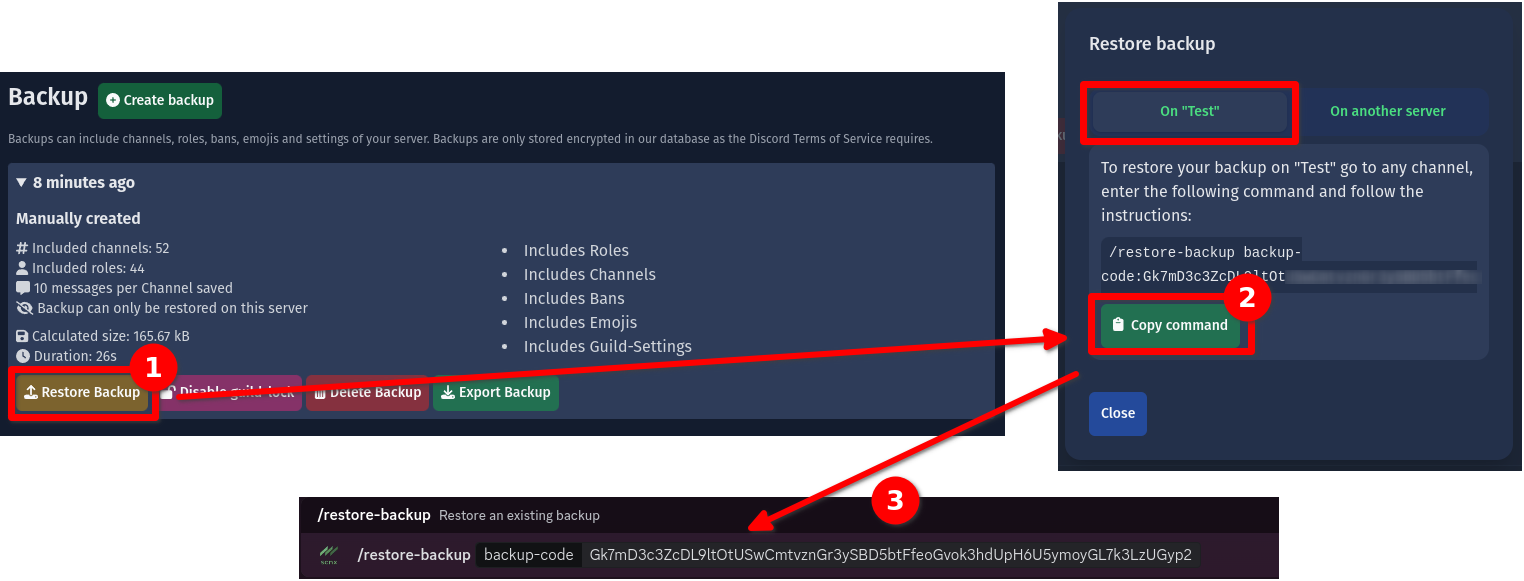
Next, confirm your request using the button below the answer in Discord.
Confirming this request will delete all current channels & roles on your Discord and replace them with the channels & roles stored in your backup.
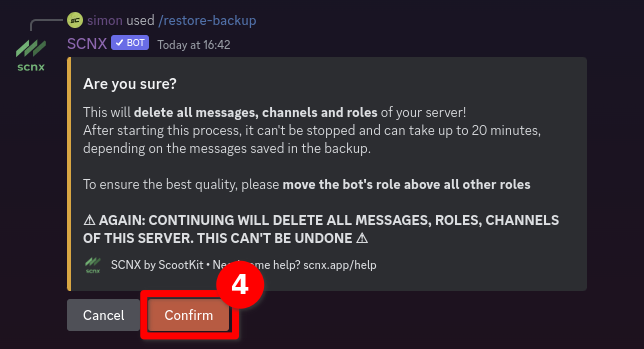
After confirming, the SCNX Bot will start by deleting all existing channels and roles from your server. Once that's done, the SCNX Bot will start restoring your data. This might take up to 20 minutes or even more. Once done, the SCNX Bot will ping you (or DM you). This will also happen if something went wrong.
Restore on other servers
The server you want to restore the backup on does not need to be added to SCNX, but the SCNX bot needs to be invited.
The restoration process is widely the same as restoring the backup on your own server - even the command used is the same. Still, before restoring a backup on another server, you'll need to disable the Guild-Lock on your server.
The guild lock is a protection mechanism for your backup: Anyone with the backup code (the command displayed in the dashboard) can restore the backup on any server if it is disabled. Luckily, it's enabled by default. To disable it, visit the backup dashboard, select your backup and click on "Disable Guild-Lock".
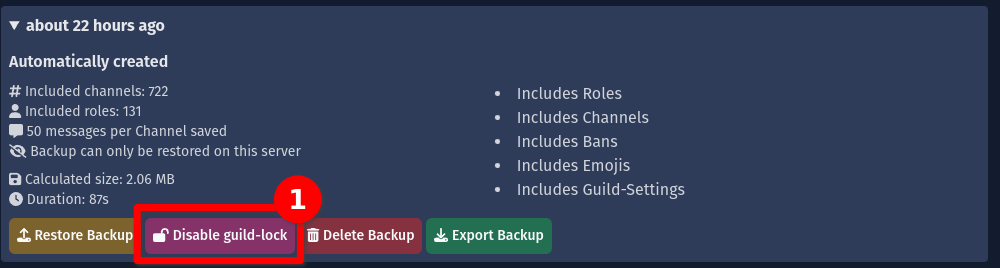
After disabling the guild-lock, please follow the same instructions as restoring on the original server. When you are done, we highly recommend re-enabling the Guild-Lock - you can do that the same way you enabled it.
Troubleshooting
When I create a backup, I see the following message: "Backup planning failed: ADMINISTRATOR permission needed,
but not granted"
When I create a backup, I see the following message: "Oh no, you got ratelimited"
To ensure the safe performance of all authorized activities, we limit the number of backups a server can create manually in a certain timeframe.
My backup is shown in the SCNX Dashboard as "Errored"
When trying to restore a backup, the SCNX Bot messages me with "An error occurred when trying to restore your
backup ):"
SCNX is not creating automatic backups on your server
Export backups
To export a backup, visit the backup dashboard, select your backup and click on "Export backup". Your browser will - after a short delay - start downloading a JSON-File to your PC. Before downloading, please check the "Calculated size" of the backup to make sure you know how much data you are downloading.
This JSON file was designed to work well with discord-backup, but - as we do not use this library internally - we can not guarantee that the export will work flawlessly with it. Still, anyone with the technical knowledge can easily restore your backup using the export. The JSON file includes sensitive information, like message content, so only share it with users you trust.
You can not import exported backups back into SCNX.